Most Shopify product store teams don’t struggle with creativity.
They struggle with volume.
One product doesn’t need one image anymore.
It needs a full PDP set:
- clean product shots
- on-model variants
- lifestyle images
- banners
- short videos
And increasingly, these aren’t just edits.
They’re new PDP assets that need to be created.
That’s where things start to break.
You begin with a few PDP images.
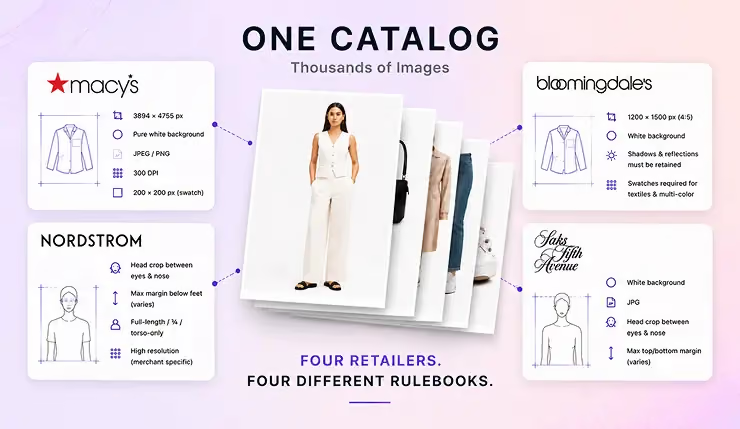
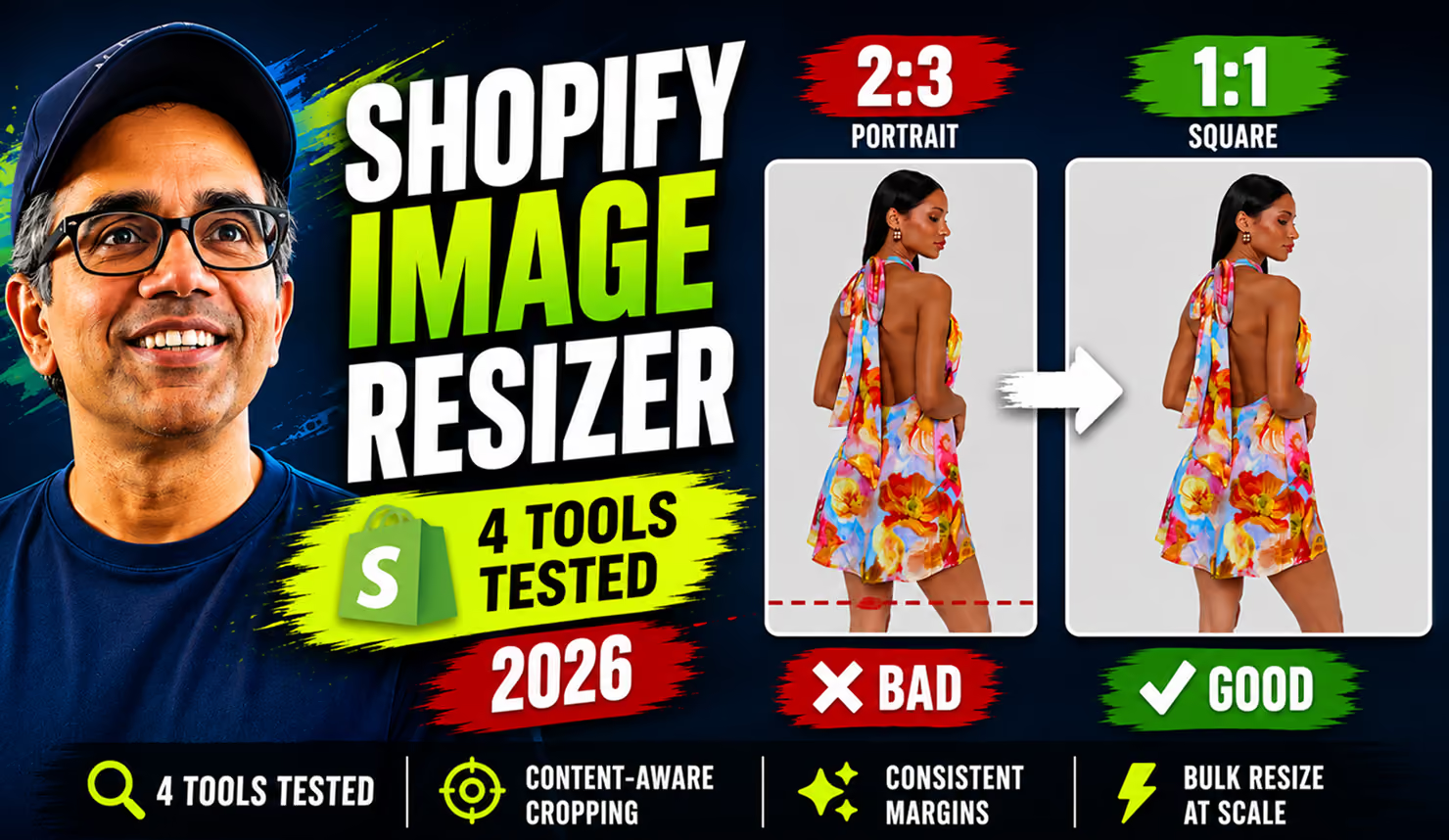
Different sizes. Crooked crops. Inconsistent backgrounds.
But the problem isn’t just fixing them.
It’s everything that comes next:
- generating missing variants
- creating lifestyle visuals
- building banners
- producing product & on-model videos
So the workflow becomes:
crop → resize → retouch → generate variants → repeat
Multiply that across hundreds or thousands of Shopify PDP listings or SKUs - and suddenly, PDP visual production becomes the bottleneck.
What Shopify Image Automation Should Actually Do
Most AI tools in this space promise one thing:
faster editing with AI.
But AI editing isn’t the real problem.
The real problem is production.
You’re not trying to fix one image.
You’re trying to produce complete PDP image sets across hundreds or thousands of products.
That requires more than editing.
It requires a system that can:
- understand what each image is
- decide what outputs are needed
- generate those outputs automatically
- keep everything consistent
- and publish results back to Shopify
That’s the shift.
From: editing individual images
To: producing complete PDP image sets
This is exactly what AI Match inside Crop.photo & accompanying Shopify app is built for.
Instead of asking:
“How do I edit this image?”
You define:
“What should this product’s image set look like?”
And the system handles the rest.
That’s the difference.
Most tools still rely on prompting — you experiment, adjust, and retry until you get the right result.
That’s prompt fatigue.

AI Match removes that entirely by turning outcomes into reusable recipes you can apply across your catalog.
From One Image to a Complete PDP Set
What does that actually look like?
You start with selecting one or more product listing in our Shopify app:
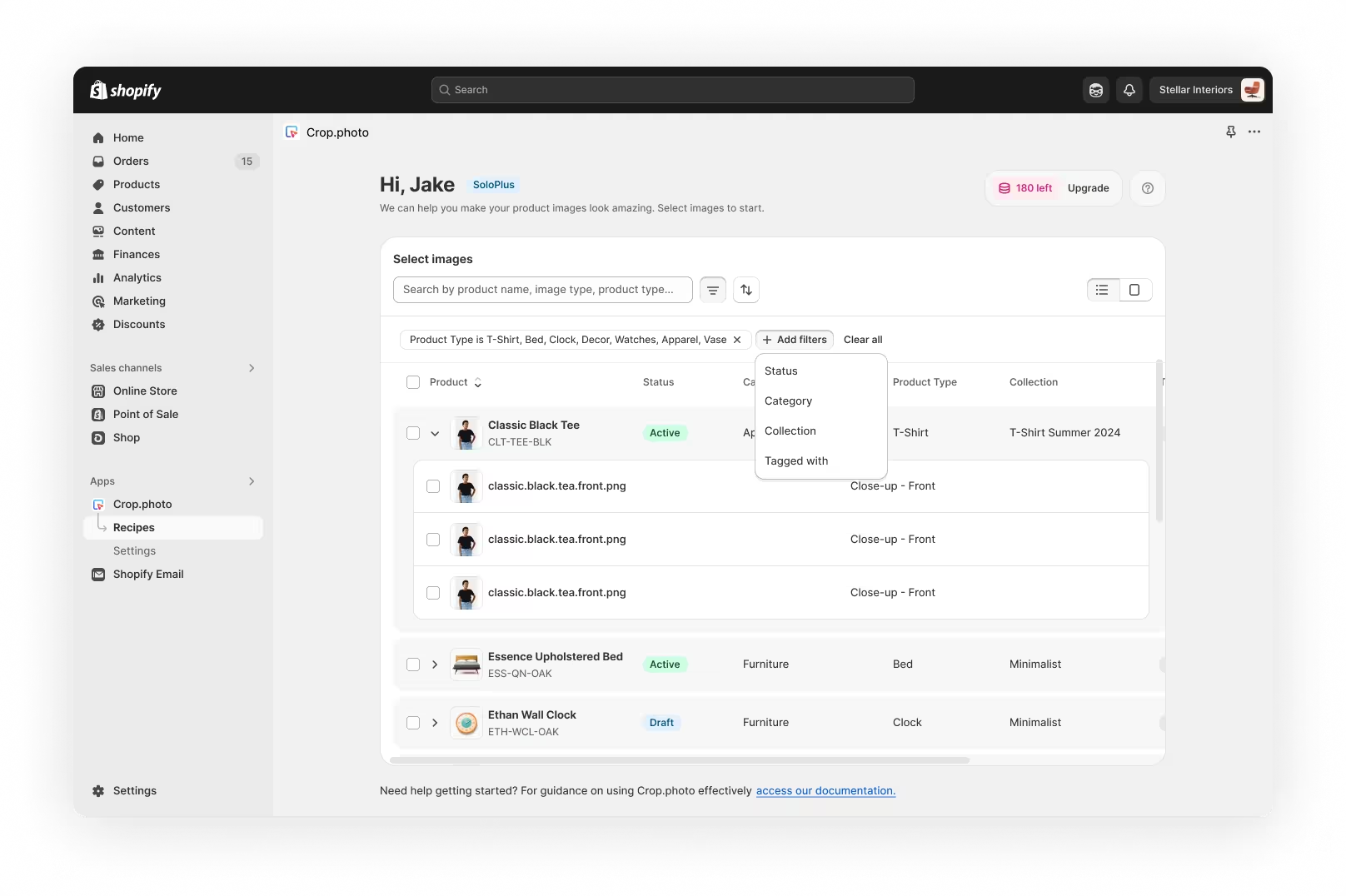
Instead of producing one edited version, AI Match generates a full set of assets your product listing needs.
For each product, that can include:
- clean product images
- consistent crops across formats
- model and headless variants
- lifestyle scenes
- banners
- short product videos
These aren’t variations of the same image.
They’re different outputs for different use cases — all generated from the same source.
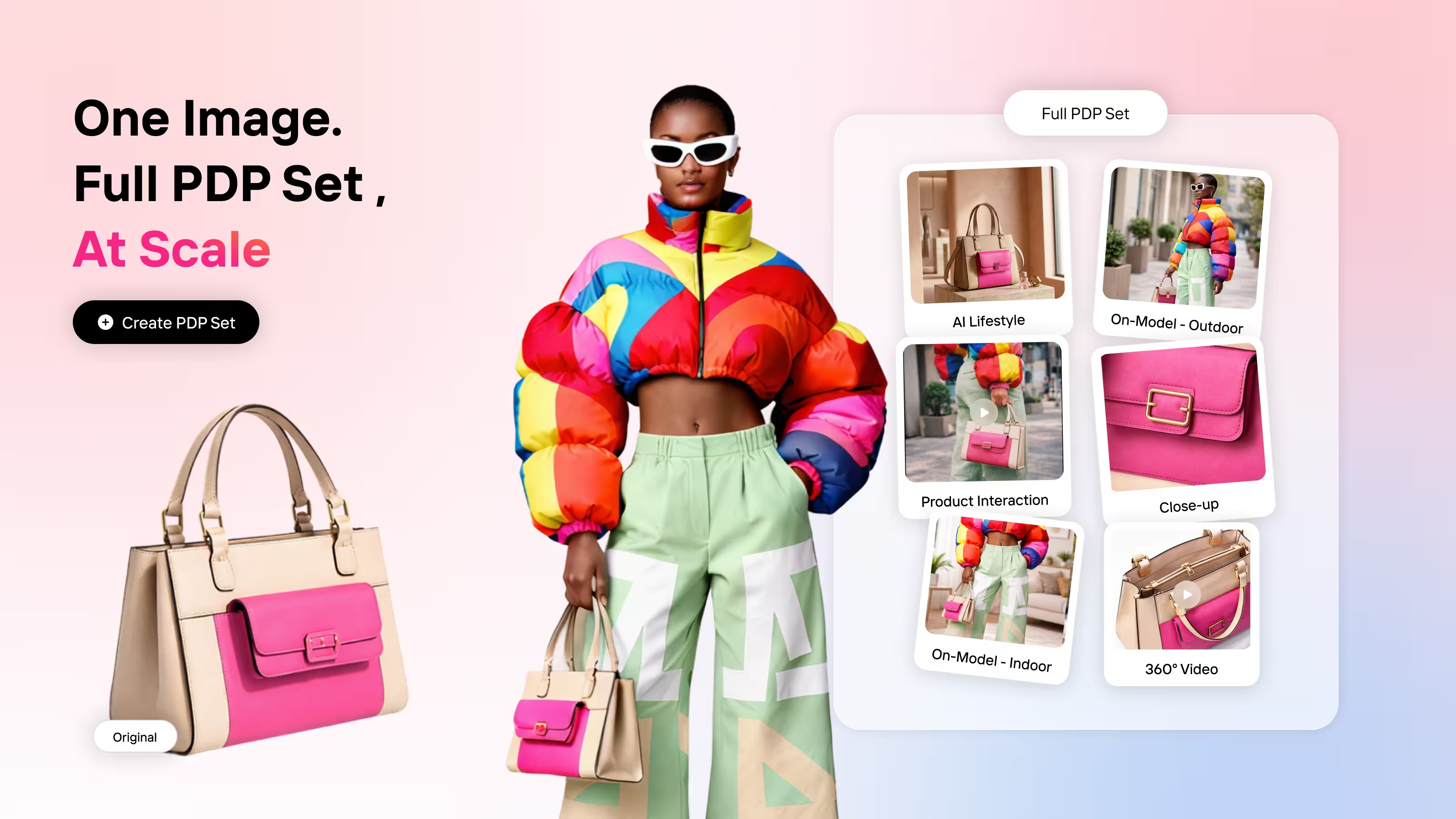
Try AI Match on your Shopify catalog →
How AI Match Works
Behind the scenes, AI Match handles everything required to turn your Shopify listings’ images into a complete PDP set.
You don’t have to configure each step manually.
The system makes the right decisions for you - and applies them at scale.
It does this in 4 parts:
1. Understands your images and product context
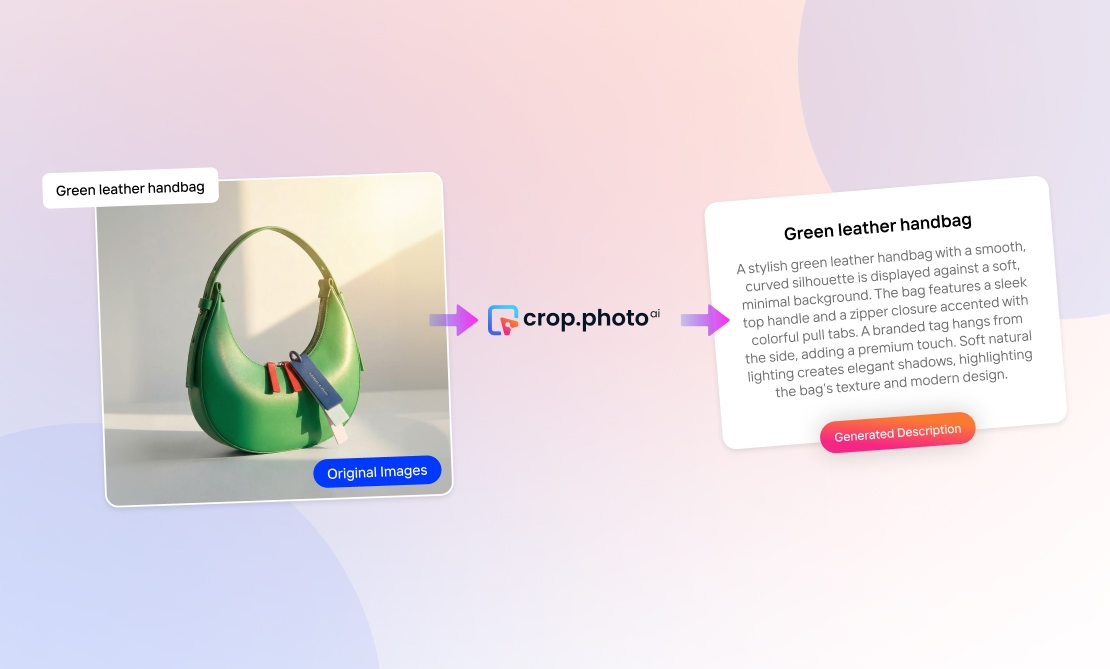
AI Match first analyzes each image to understand what it is and how it should be used.
It combines image analysis with product metadata from Shopify to build full context.
It detects:
- product category (e.g. apparel, footwear, bags)
- image type (on-model, product-only, close-up, etc.)
And it also uses product metadata such as:
- product title
- product category or collection
- product description

This helps resolve ambiguity — for example, distinguishing between an apparel model shot and a product-focused image like a bag worn by a model.
2. Selects the right transformations
Once the system understands the image and product context, AI Match selects the best set of transformations using recipes.
Recipes define how an image should be transformed, including:
- crop type and framing
- background generation or expansion or replacement
- layout and composition
- output format and size
Instead of applying the same edits everywhere, AI Match maps each set of images to the most relevant set of recipes automatically.
3. Generates complete PDP outputs
Finally, AI Match applies those recipes to generate a full set of outputs for each product.
This includes:
- product-ready images
- alternate crops and formats
- lifestyle visuals
- banners
- video-ready assets
All outputs are consistent in size, margins, and visual style — ready to be used across your PDP, ads, and other channels.
4. Review and apply to Shopify
Before anything is published, you can review the generated outputs.
If you’re happy with the results, you can:
- add them as new images to your product listing
- replace existing images
- extend your PDP with additional variants (lifestyle, banners, video)
All outputs are then applied directly back to your Shopify store.
The result
Instead of editing images one by one, generate, review, and publish complete PDP image sets for a few listings or your entire catalog with 1000s of images at once, all in a single workflow.
Built for Shopify - Designed for Catalog Scale
This isn’t about fixing a few images.
AI Match works across your entire Shopify catalog:
- multiple product listings
- multiple images per product
- consistent outputs across every SKU
From tens to thousands of products, you generate complete PDP image sets in one workflow.
Extend It with Your Own Recipes
AI Match automatically selects the right transformations.
But you can also define your own.
Create reusable recipes for:
- specific crop styles
- brand layouts
- marketplace formats
Then apply them across your catalog.
- 👉 Explore available recipes and how to use them → [here]
- 👉 Learn how to create your own recipes → [here]
If you want a deeper walkthrough: