AI RECIPE
A recipe is a reusable AI workflow that applies consistent edits to all your images in one go, with no prompts required.

Bulk Background Remove - Clean White-Background at Scale

Strip backgrounds from thousands of product, model, and hair-detail shots in one batch - AI preserves fine edges even on low-contrast images.

About this recipe

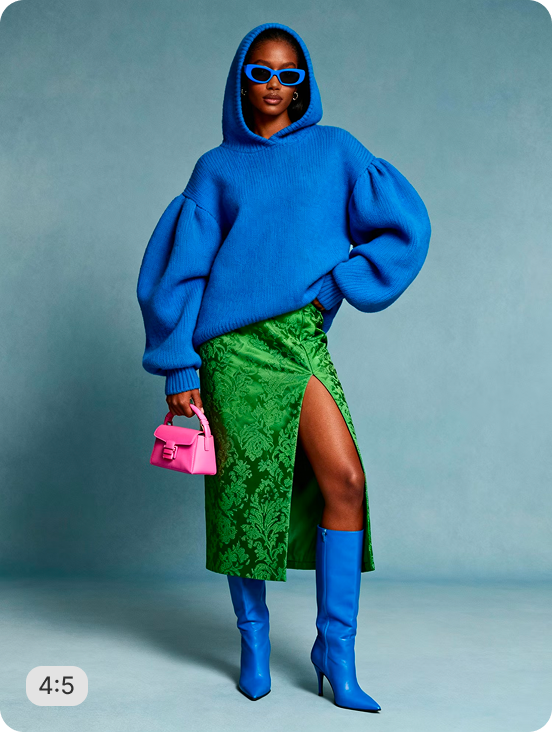
Remove backgrounds from many ecommerce images at once with AI that creates clean, precise cutouts - even on the hardest cases like flyaway hair, low-contrast edges, and on-model shots. Each image is auto-resized and aligned, with the background replaced by a pure white (#FFFFFF) backdrop by default. Output matches the original size, aspect ratio, and format, so this drops directly into existing workflows without resizing side effects. Built-in AI upscaling automatically strengthens lower-resolution source images so edge detail stays crisp after the cutout. This recipe is part of Crop.photo's bulk background removal toolkit, built for brands and sellers who need consistent white-background imagery across large catalogs for Shopify, marketplaces, PDPs, and print catalogs.

Use cases

  • Standardize product photos with consistent white backgrounds
  • Cleaning up supplier or wholesale images wiht inconsistent backdrops

Tips for best result

  • Use images with even lighting
  • Avoid images with background s with colors very close to the hair color

Try Similar Recipes

Explore other variations for this category
Go to Recipe Gallery

Frequently Asked Questions

Will this work on images with hair or fine, flyaway details?

Yes - this recipe is specifically built to handle hair, fur, and other fine-edge detail, including on lower-contrast backgrounds where basic background removers typically struggle.

Does this resize or crop my images?

No. Output size, aspect ratio, and format all match the original file - this recipe only removes and replaces the background, not the framing.

What happens if my source images are low resolution?

AI Upscale is enabled by default, so lower-quality images are automatically enhanced to help preserve clean edges in the final cutout.

Can I use a background color other than white?

Yes. White (#FFFFFF) is the default, but the background color setting can be changed to any color or kept transparent depending on your output needs.

Is this suitable for on-model apparel photos, not just flat-lay products?

Yes, this recipe is designed to handle all type of images

Have more questions or doubts for us? Get your questions answered from out team within 14 hours